Try It
Manifesto
New York City is built from fragments — not just glass and steel, but moments too small to hold.
Each photo becomes a pixel in a larger rhythm. Together, they reveal a city that is both vast and intimate.
Here, each pixel is a heartbeat and each color is trace of someone’s day.
Pixel by pixel, the city reassembles itself — not as a map of streets, but as a living memory shaped by the people who look, pause, and capture.
Overview
Pixel by Pixel NYC is an evolving collection of photographs taken in New York City. Each photograph settles on a pixel on a pixelated map of the city based on the location where it is taken. As the collection grows, different photos might be on the same pixel, so every time you refresh the map, a random one of them will settle on the pixel, producing countless possible combinations and possibilities. This collection is open to anyone in NYC, and every upload is anonymous.
Process
In the beginning, I wasn't really sure about what the mosaic should be like. In the concept post, I took an older version of MTA’s New York Subway Map and put it through a pixelization tool, which produced a pixel grid map that hardly looked like NYC. However, I thought the colorful pixels on this image was somewhat interesting, so I didn’t gave up this approach. I experimented different pixel densities and settled on 45px by 54px for the entire map. This way, the map resembles clearly 4 of the 5 boroughs of NYC (not Staten Island because it’s too far away).
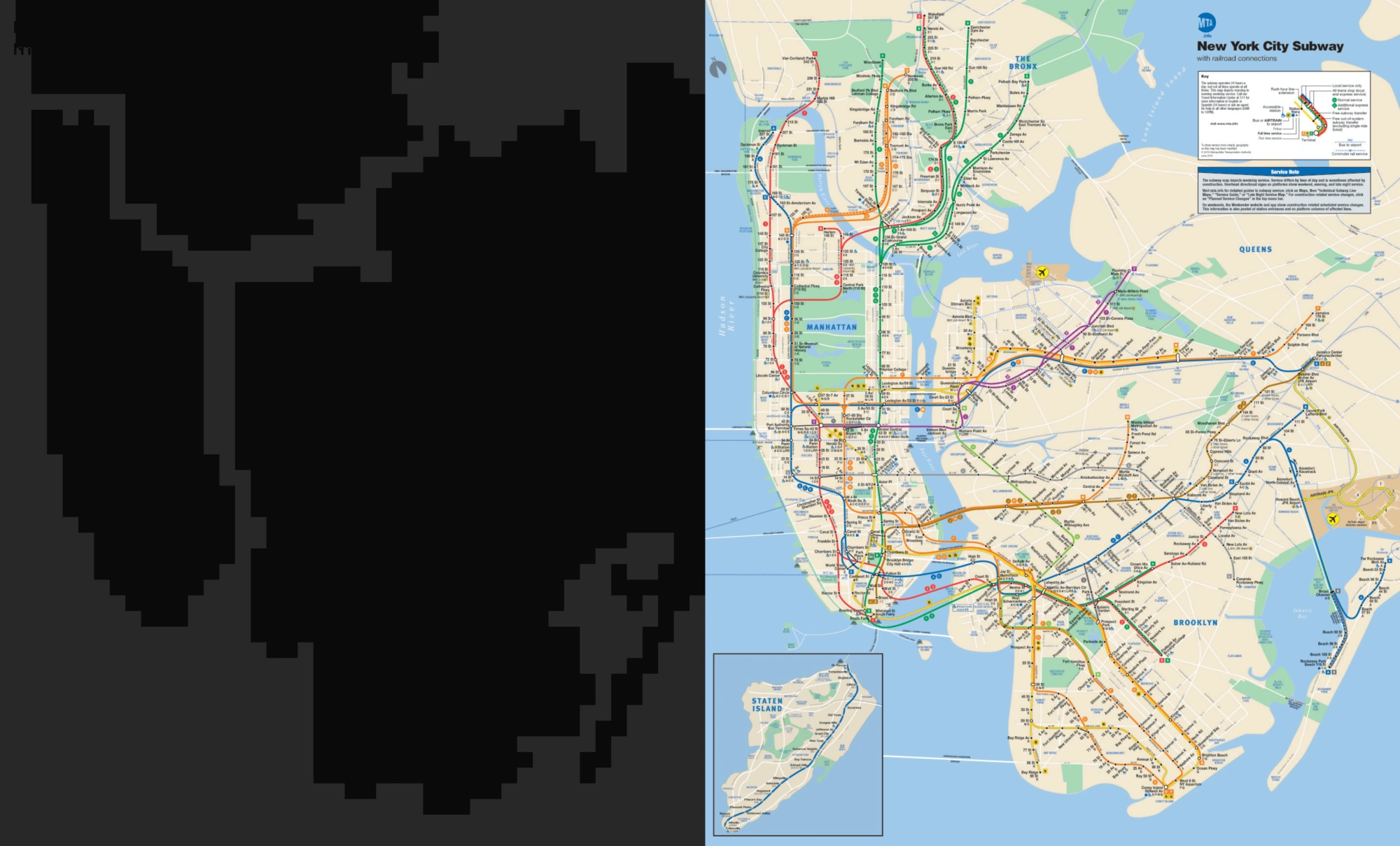
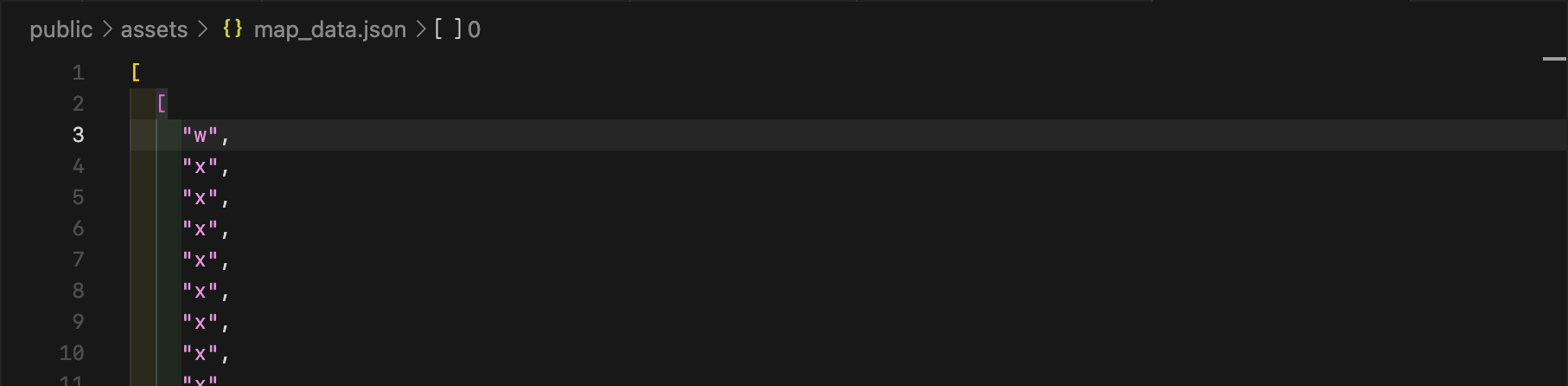
Then I experimented on how to create this map on a webpage. Since each pixel could potentially be a photo, there could be 2430 pixels/photos on the page, which would be a challenge for the browser if every one of them is an HTML element. So I needed a different approach. The only way this can be possible is to draw the map in a canvas element. So I exported the map I drew in Figma, wrote a simple Python script to read the color of each pixel and convert the map into a JSON file (which specifies if each pixel is water or land). I stored this JSON file on my server so that the frontend and fetch it and render the map accordingly.
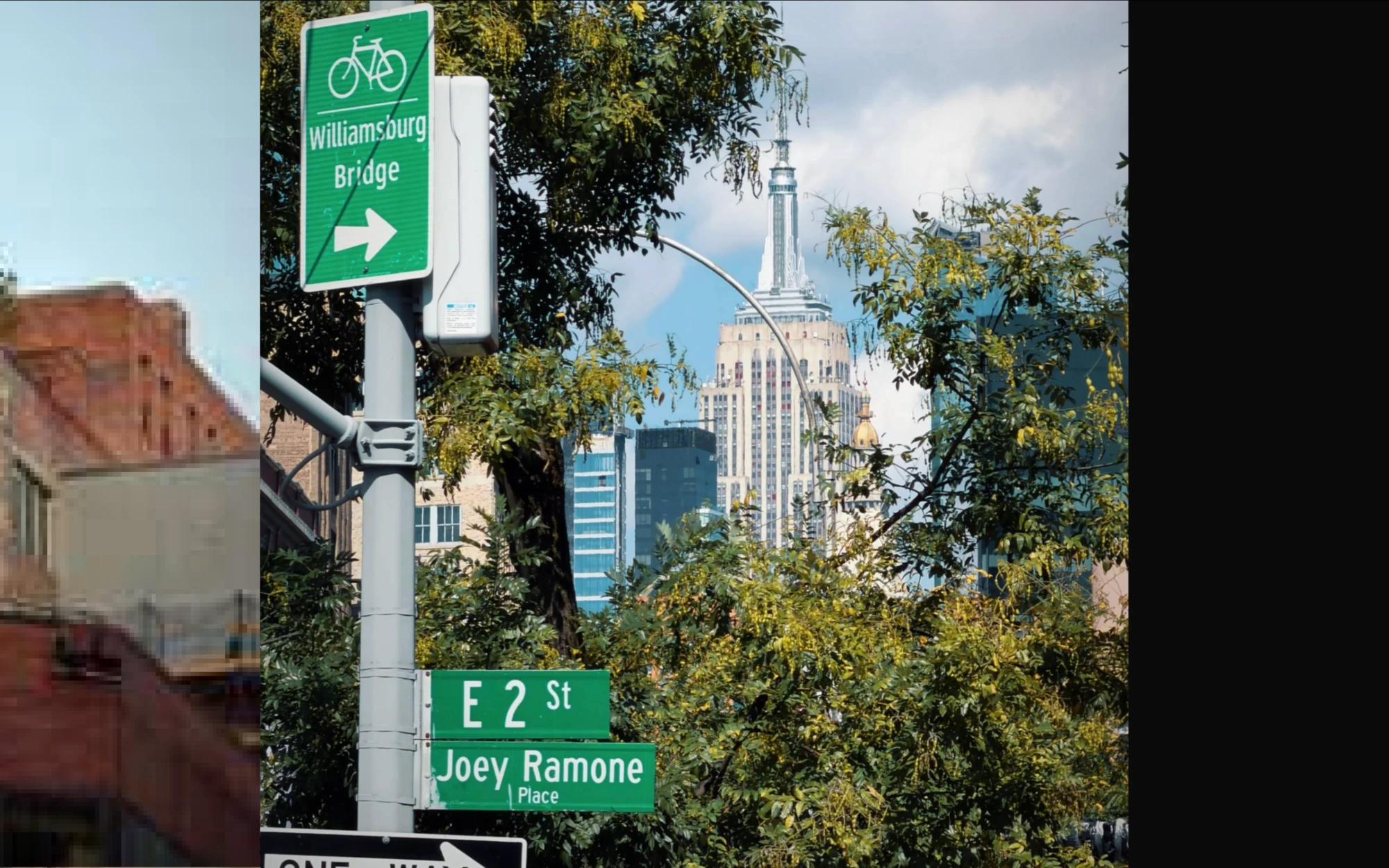
In addition, I spent a lot of time optimizing the map. The uploaded photos are processed into 2 versions: a high resolution version and a low resolution version (only 200px by 200px). When moving around and zooming in on the map, only the low-res version of photos will be rendered. Only when the user taps or clicks on a photo, the map will zoom in on that photo and render the high-res version as an HTML element overlayed on the canvas (because the antialiasing in the canvas is turned off, the photo wouldn’t be rendered ideally).
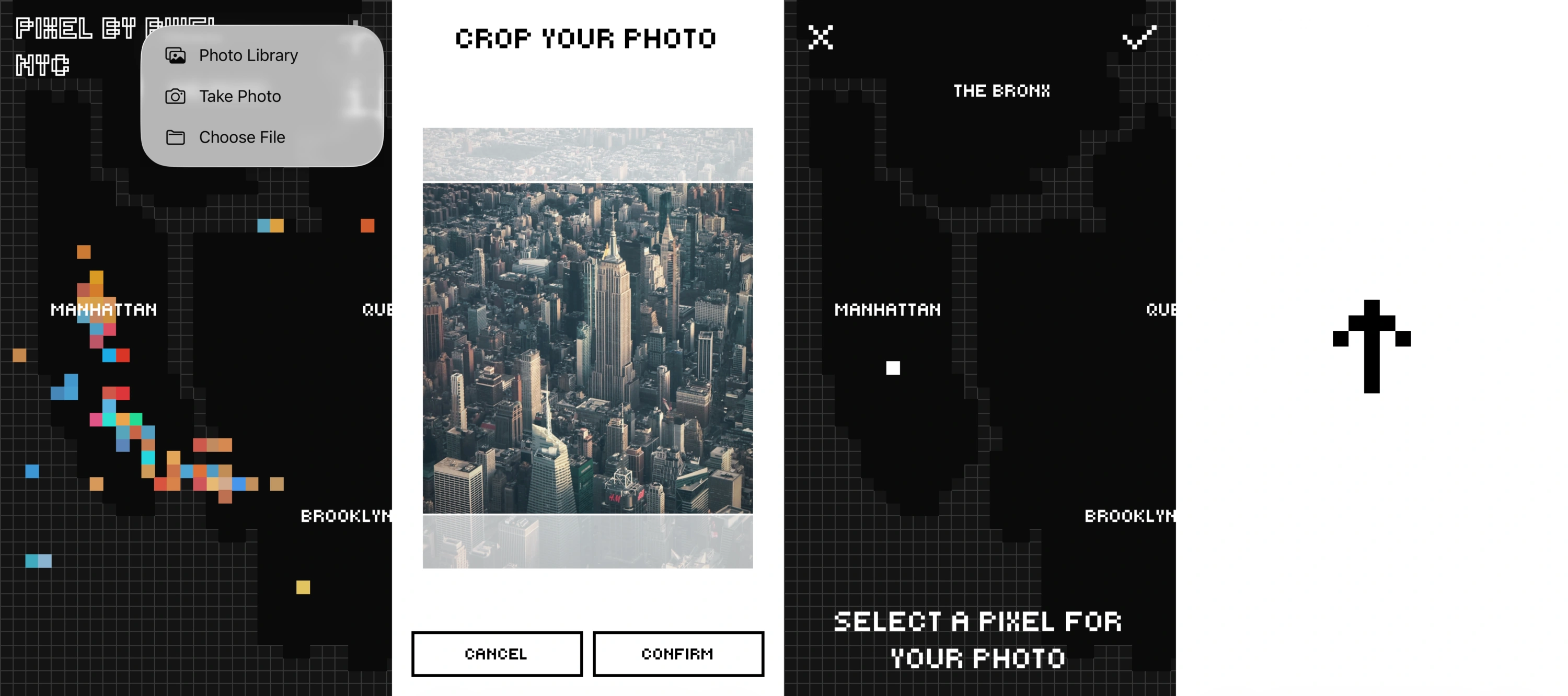
One of the most important part of this project is the photo upload experience. I created a smooth user flow with animations—the user first clicks the add button (or drag and drop an image file), crops their image into a square to fit in the pixel, select a pixel on the map where they took the photo, and the photo is uploaded. In initial testing, the biggest pain point was worrying about image sizes. Photos taken on iPhones are usually 2-3MB in HEIC format, but when selecting the photo in the browser, it will be converted to JPEG and its size becomes over 10MB, which takes a lot of time to upload and process on the server alone. So I implemented two compression libraries, one in the frontend that compresses the image to under 1MB for optimal upload time, and the other in the backend to further compress the image to under 500KB for the high-res version and under 50KB for the low-res version.
Other than the compression, my server also uses a library called vibrant.js to extract a primary color from each image as the color for each pixel. After processing, it uploads the image files to Cloudflare R2 Storage and store the URL to the images in my database.
Tech Stack
- EJS for frontend templates (passing the photo objects to the frontend)
- Cropper.js for frontend image cropping
- browser-image-compression for frontend image compression
- sharp for server image compression
- node-vibrant for color extraction
- Cloudflare R2 for image storage